HTTP · built in
Wi-Fi proxy
Type the proxy into the settings of your Wi-Fi network. Free and built into iPhone. Safari and most apps use it on that network.
JesusProxy for iPhone
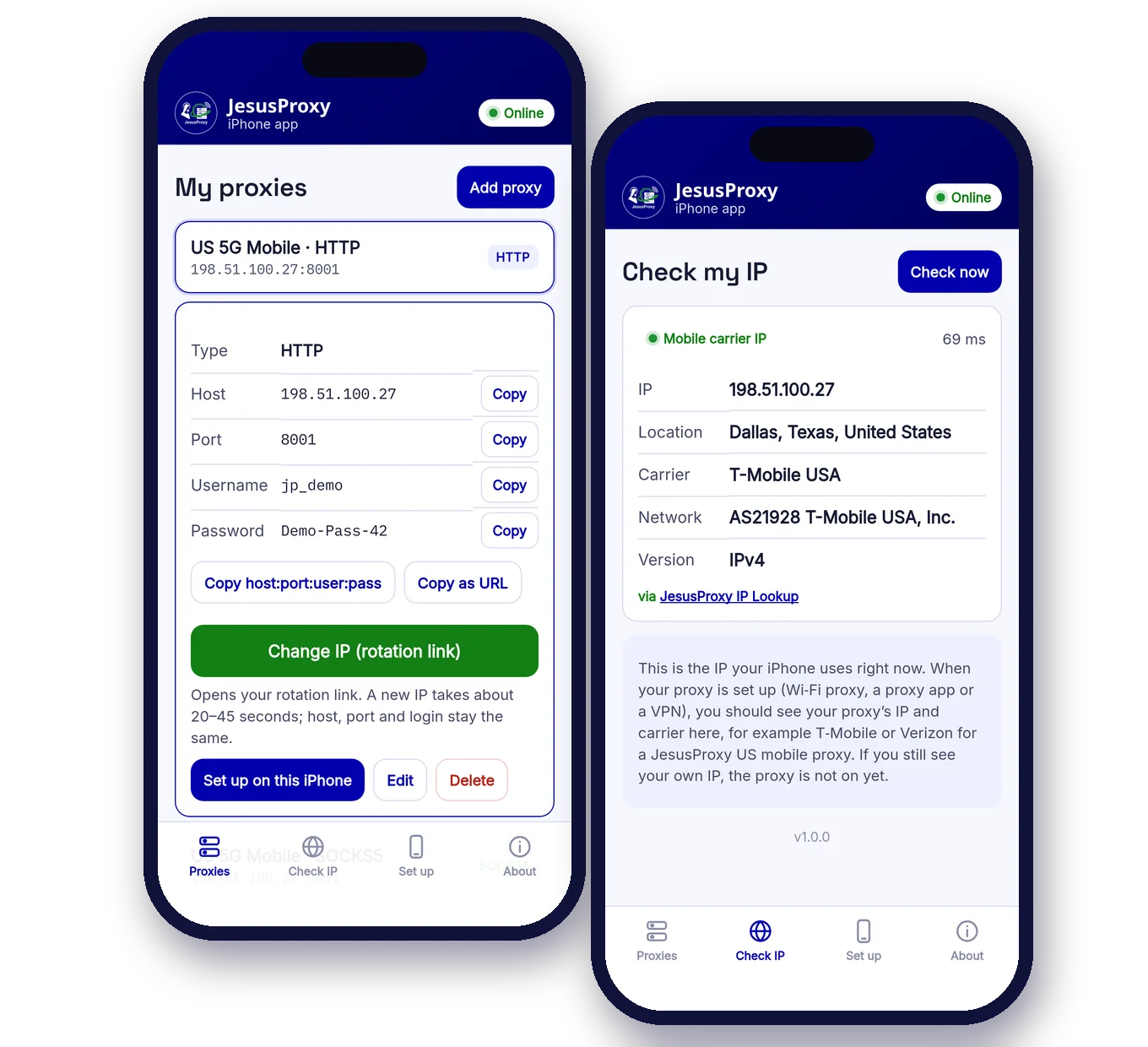
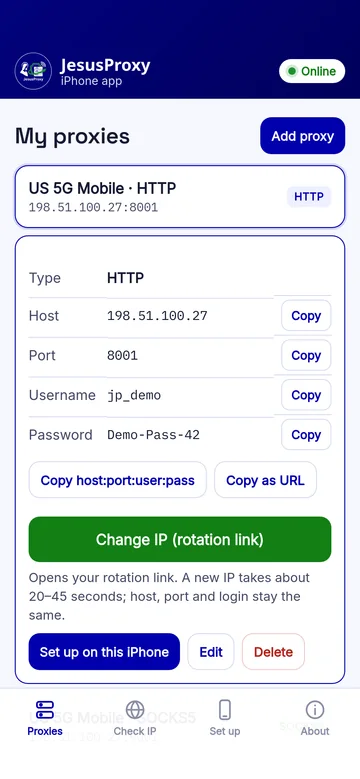
The free JesusProxy iPhone app keeps your proxies in one place. Paste host:port:user:pass or a socks5:// link, copy each HTTP and SOCKS5 detail with one tap, check your IP, location and carrier, and change your IP with your rotation link. Install it from Safari in under a minute, then connect your iPhone with the method that fits: Wi-Fi proxy, a one-tap Wi-Fi profile, a SOCKS5 app or a VPN file.
About the app
host:port:user:pass line and the proxy URL.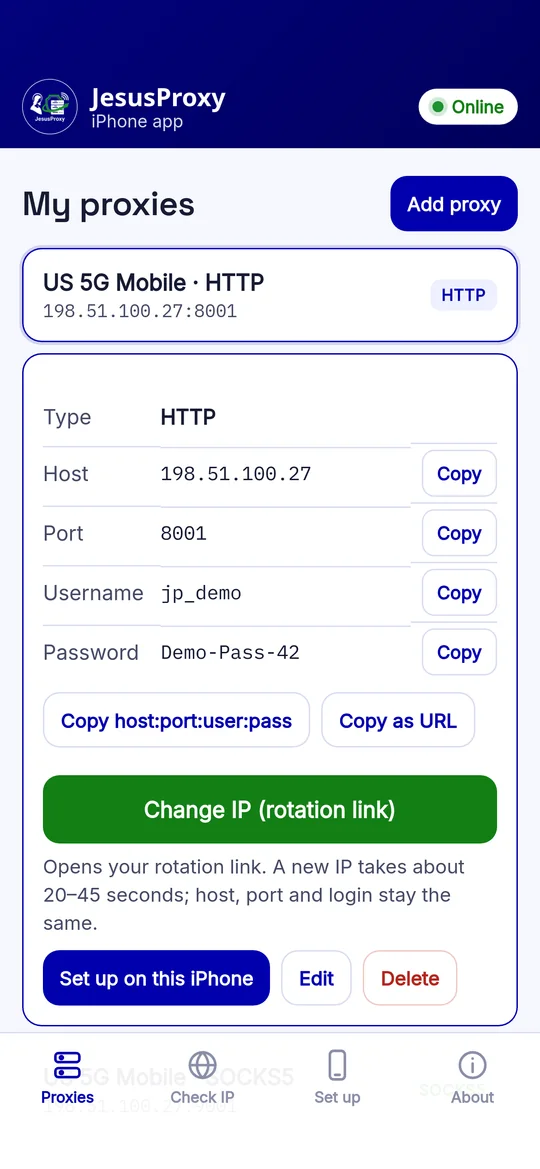
Install from Safari
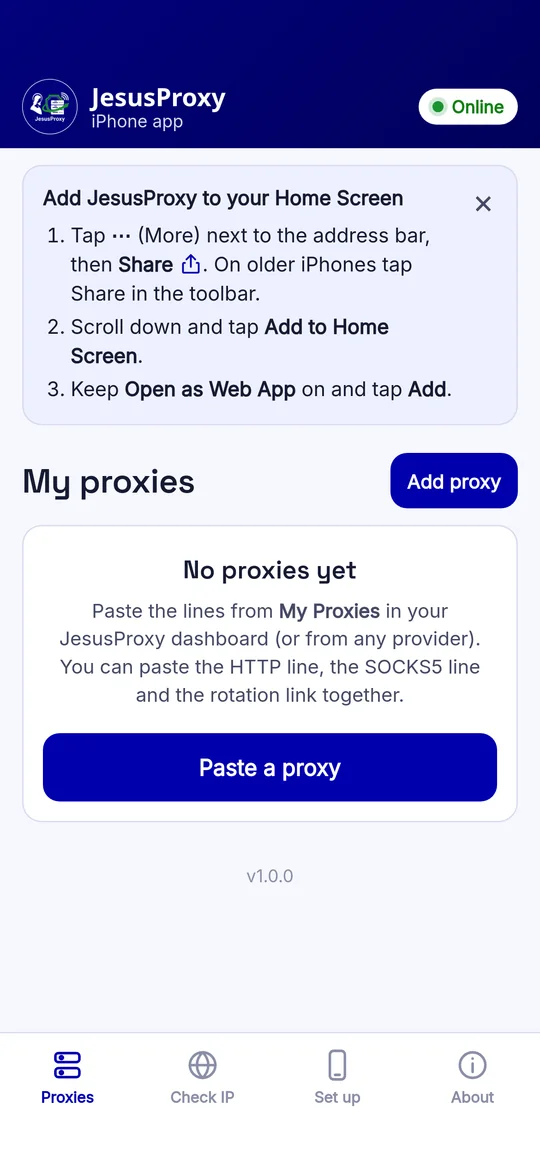
iPhones only install App Store apps, but Safari can add a web app to your Home Screen. It gets its own icon and opens full screen like any other app.
On your iPhone, open jesusproxy.com/app in Safari. If you tapped a link inside another app, choose Open in Safari first.
Tap the More button (three dots) next to the address bar, then Share. On iOS 18 and earlier, tap Share in the toolbar.
Scroll down and tap Add to Home Screen. If it is missing, tap Edit Actions at the bottom of the list and add it.
Keep Open as Web App on and tap Add. Open JesusProxy from your Home Screen and paste your proxy.
Connect your iPhone
Pick the one that fits. The app fills in your own values for each.
HTTP · built in
Type the proxy into the settings of your Wi-Fi network. Free and built into iPhone. Safari and most apps use it on that network.
HTTP · one tap
The same Wi-Fi proxy, filled in for you. The app makes a setup profile for one Wi-Fi network; you install it in Settings.
SOCKS5 · mobile data
Shadowrocket or Potatso send your iPhone traffic through HTTP or SOCKS5, on Wi-Fi and on mobile data.
Private · whole phone
JesusProxy Private includes WireGuard and OpenVPN files that send the whole iPhone through your proxy phone.
| Method | Proxy type | Wi-Fi | Mobile data | You need |
|---|---|---|---|---|
| Wi-Fi proxy | HTTP | One network | No | Nothing extra |
| Wi-Fi setup profile | HTTP | One network | No | The Wi-Fi name and password |
| Proxy app | HTTP or SOCKS5 | Yes | Yes | Shadowrocket (paid) or Potatso (free, iOS 17+) |
| VPN file | WireGuard or OpenVPN | Yes | Yes | JesusProxy Private and the free WireGuard or OpenVPN Connect app |
Method 1 · HTTP
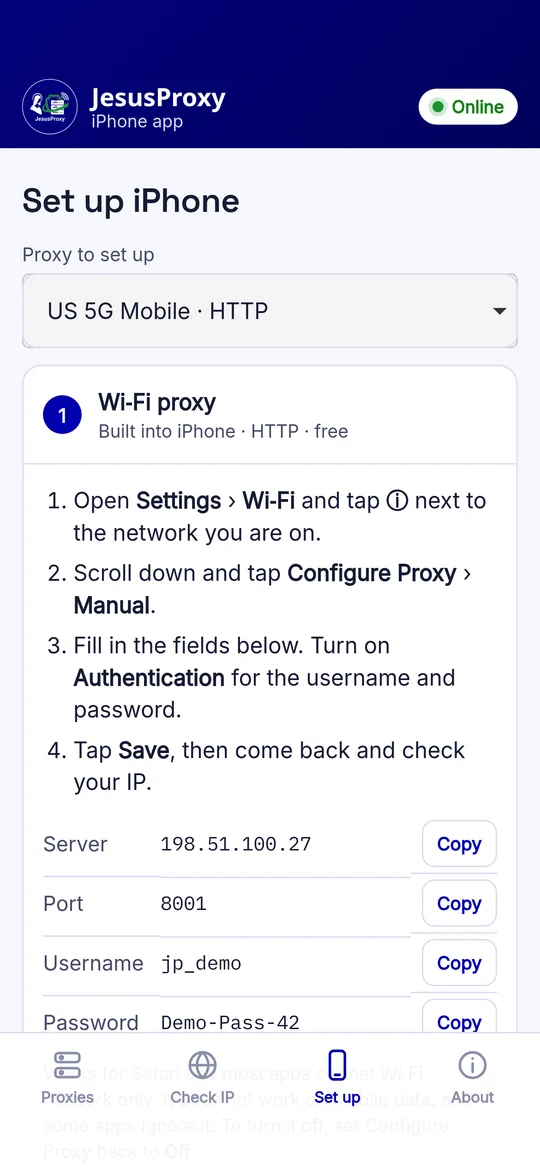
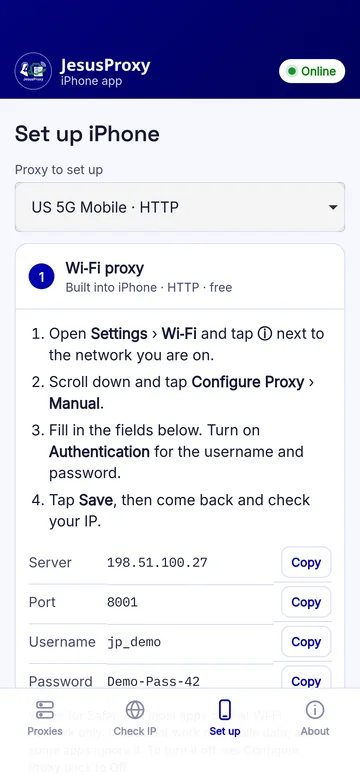
In the app, open Set up and pick your HTTP proxy. Server, port, username and password each have a copy button.
Open Settings, then Wi-Fi, and tap the info button next to the network you are on.
Scroll down, tap Configure Proxy and choose Manual. Enter the server and port, turn on Authentication and enter the username and password. Tap Save.
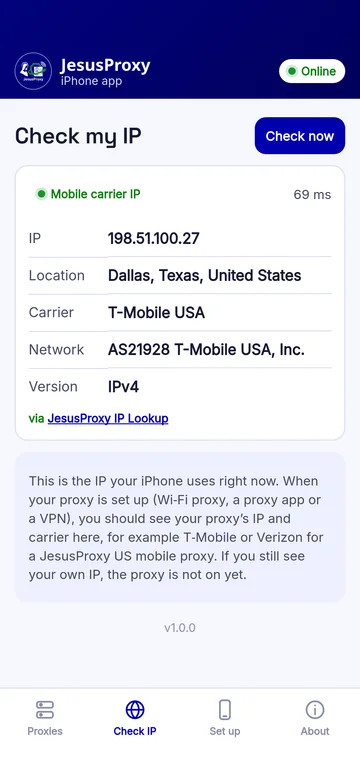
Open the app and tap Check IP. You should see your proxy IP and its carrier, for example T-Mobile or Verizon for JesusProxy.
Method 2 · HTTP
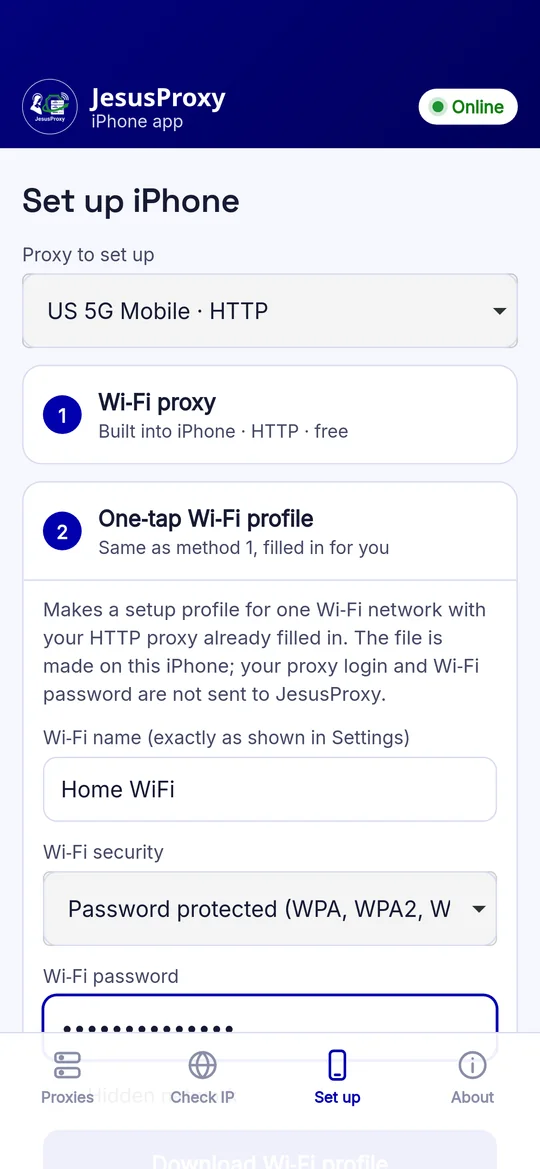
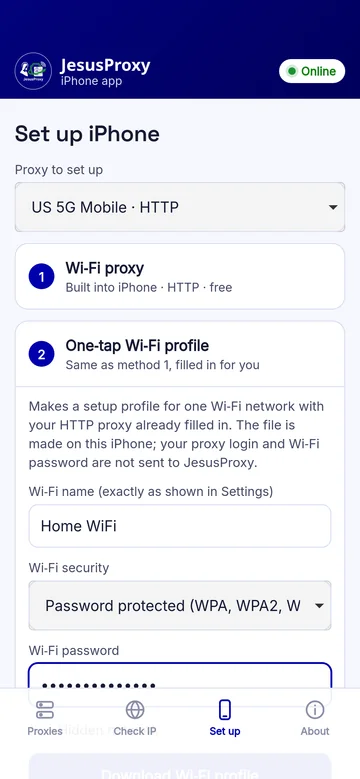
The app can make an iPhone setup profile with your HTTP proxy already filled in for one Wi-Fi network. It is made on your iPhone; your proxy login and Wi-Fi password are not sent to JesusProxy.
In Set up, open One-tap Wi-Fi profile, enter the Wi-Fi name and password and tap Download Wi-Fi profile. Use Safari for this step.
Tap Allow when Safari asks to download a configuration profile, then tap Close.
Open Settings and tap Profile Downloaded, or go to General, then VPN and Device Management. Tap Install and enter your passcode.
Join that Wi-Fi network and check your IP in the app.
Method 3 · SOCKS5 and mobile data
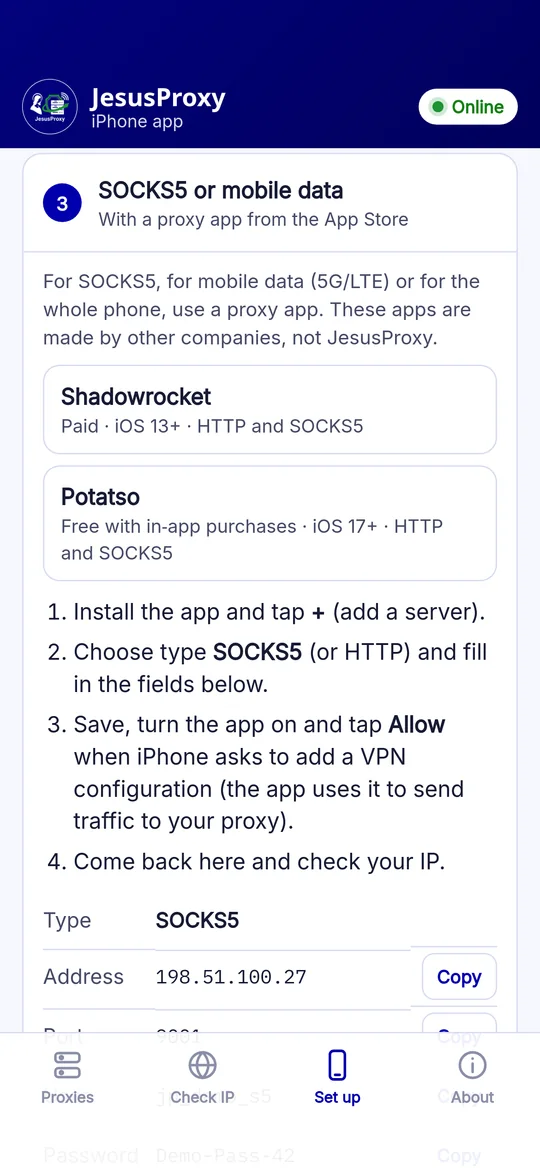
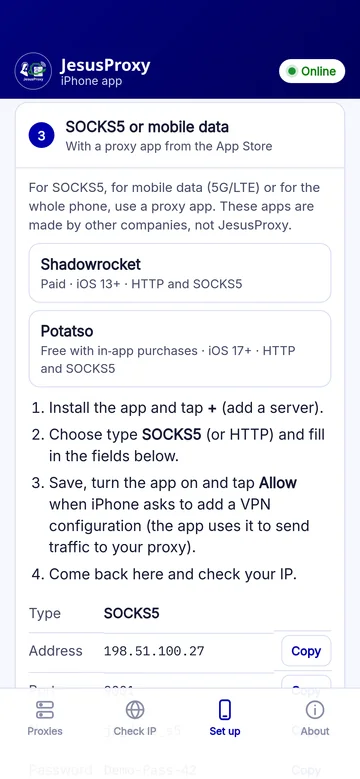
iPhone Settings have no SOCKS5 option and no proxy for mobile data. A proxy app from the App Store fills that gap. These apps are made by other companies, not JesusProxy.
Install the app and tap the plus button to add a server. Choose SOCKS5 (or HTTP).
Copy the address, port, username and password from the JesusProxy app and save.
Switch the app on and tap Allow when iPhone asks to add a VPN configuration. The app uses it to send your traffic to the proxy.
Open the JesusProxy app and tap Check IP.
Method 4 · JesusProxy Private
JesusProxy Private comes with WireGuard and OpenVPN files. They send the whole iPhone through your proxy phone, on Wi-Fi and mobile data.
Install WireGuard or OpenVPN Connect from the App Store. Both are free.
Sign in to My Proxies in Safari and download the WireGuard (.conf) or OpenVPN (.ovpn) file.
Tap the file, then Share and choose WireGuard or OpenVPN. In WireGuard you can also tap the plus button and Create from file or archive.
Tap Allow for the VPN configuration, turn the tunnel on and check your IP in the JesusProxy app.
Straight answers
Screenshots
FAQ
About the free JesusProxy iPhone app and proxies on iPhone.
Yes. The iPhone app is free, with no account, no ads and no tracking. It works with proxies from any provider, and you do not need a JesusProxy plan to use it.
It is a web app. You install it from Safari with Add to Home Screen, so it needs no App Store download and updates on its own. Apple does not let iPhones install app files from websites, so this is the way to offer it from our site.
No. Apple does not let a website or web app change the network settings of an iPhone. The app gives you the exact values, copy buttons, a ready-made Wi-Fi setup profile and the steps for each method. Then it checks your IP so you can see that the proxy works.
Yes, with a proxy app such as Shadowrocket or Potatso from the App Store. The proxy setting in iPhone Settings only takes an HTTP proxy. JesusProxy Private includes both HTTP and SOCKS5 logins.
The Wi-Fi proxy and the Wi-Fi profile only work on the Wi-Fi network you set them up for. For mobile data (5G or LTE), use a proxy app or the WireGuard or OpenVPN file that comes with JesusProxy Private.
Only on your iPhone, in the browser storage of the app. They are never sent to JesusProxy. The setup profile is also made on your iPhone. If you remove the app from your Home Screen, its saved proxies are deleted.
The profile is made on your iPhone with your own details, so it is not signed by a company. That is expected. You can read everything in it before you tap Install, and you can remove it at any time.
For the Wi-Fi proxy, open Settings, Wi-Fi, tap the info button next to the network and set Configure Proxy to Off. For the profile, open Settings, General, VPN and Device Management and remove it; this also removes that saved Wi-Fi network. In a proxy app or VPN app, turn the switch off.
Need a proxy?
JesusProxy runs US 5G mobile proxies on real carrier IPs, with HTTP and SOCKS5, IP rotation by link or API, and WireGuard and OpenVPN files on Private.